
Features
How AI interactive stories work in Be My Story
An AI interactive story app lets you take part in a story through text. In Be My Story, choose from ten romance and drama experiences, add dialogue or actions in the mobile app, and read an AI-generated scene reply that continues the story.
Four parts of the experience
Choose a story
Browse ten distinct stories in the Be My Story app. Each has its own cast, premise, and opening. Find a starting point on the Stories page.
Add your words or actions
Enter dialogue or an action in free-form text. You decide what your character says or does.
Read the next scene reply
An AI-generated scene reply follows your input and continues the conversation. The exact wording and direction can vary from one reply to the next.
Save and return
With an account, save separate story conversations and return to them later. Each conversation has its own story history.
The flow, step by step
- Open the mobile app and browse its ten story experiences.
- Choose one story and begin its opening.
- Enter dialogue or an action in your own words.
- Read the AI-generated scene reply.
- Continue with another input, or save the conversation with your account and return later.
Free-form text and preset choices
Some interactive stories present written options to choose from. Be My Story uses free-form text for dialogue and actions, so you write your input rather than select a displayed response.
Both approaches give a reader a way to take part. Preset choices show the available responses before selection; free-form text lets you phrase your input directly. This is a difference in format, not a ranking. Read the interactive fiction guide for more.
Continue the story in the app
Choose one of Be My Story’s ten romance and drama experiences, add your words, and read the AI-generated scene replies. Save separate conversations with an account and return to them later.
Visit the support FAQ for answers about story conversations and store listings.
Current app screens
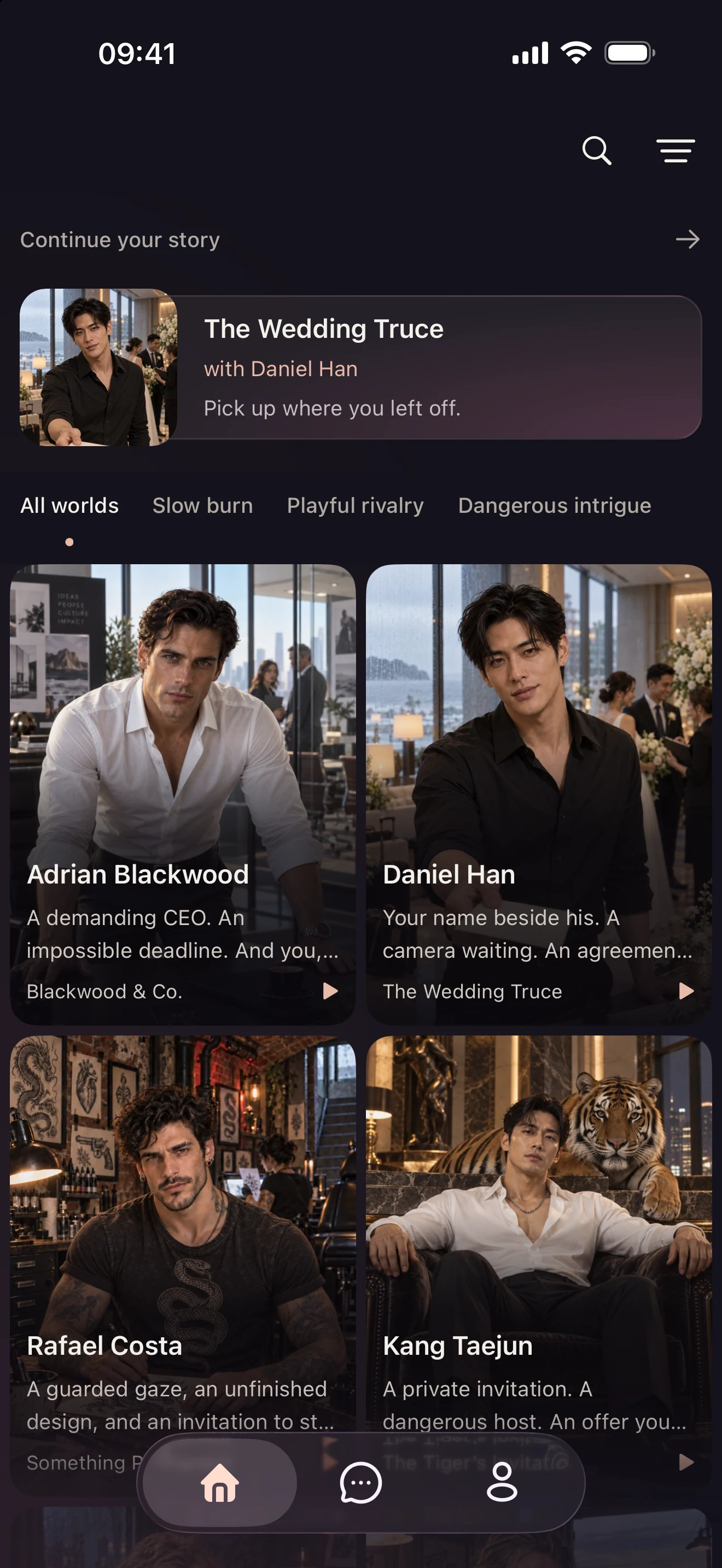
Browse the story catalog
Browse story experiences and choose where to begin.
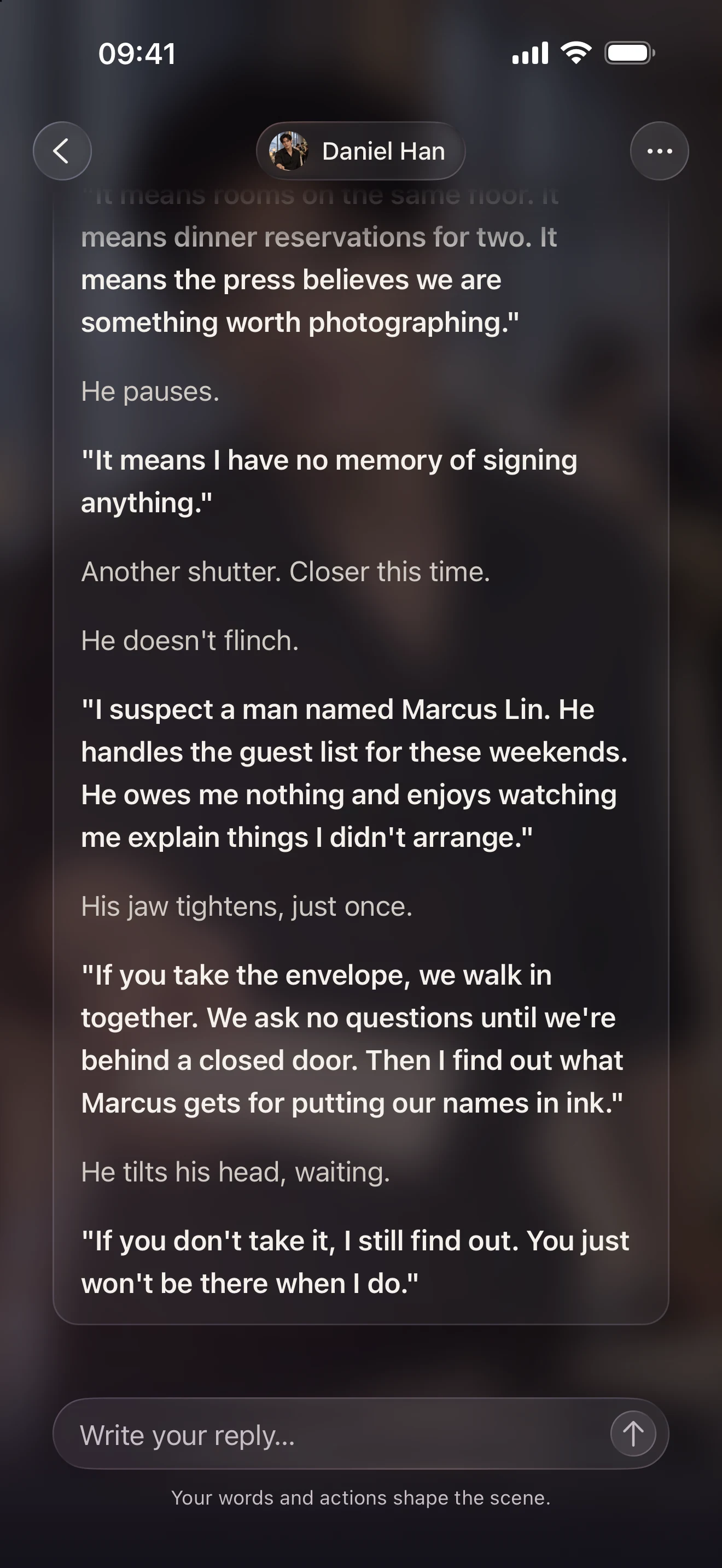
Read a story conversation
Enter dialogue or actions in the app and read the next scene reply.
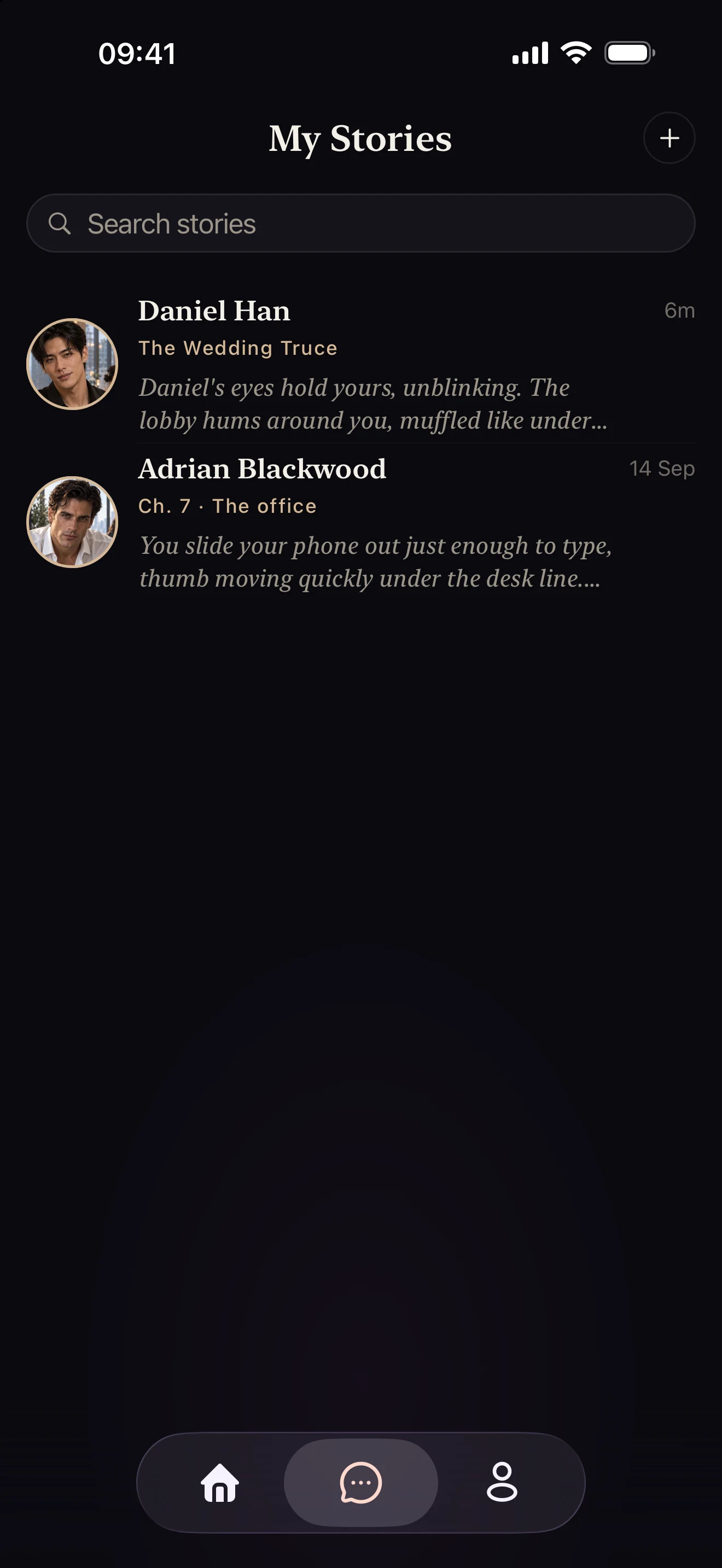
Return to saved stories
Find separate story conversations saved to your account.